
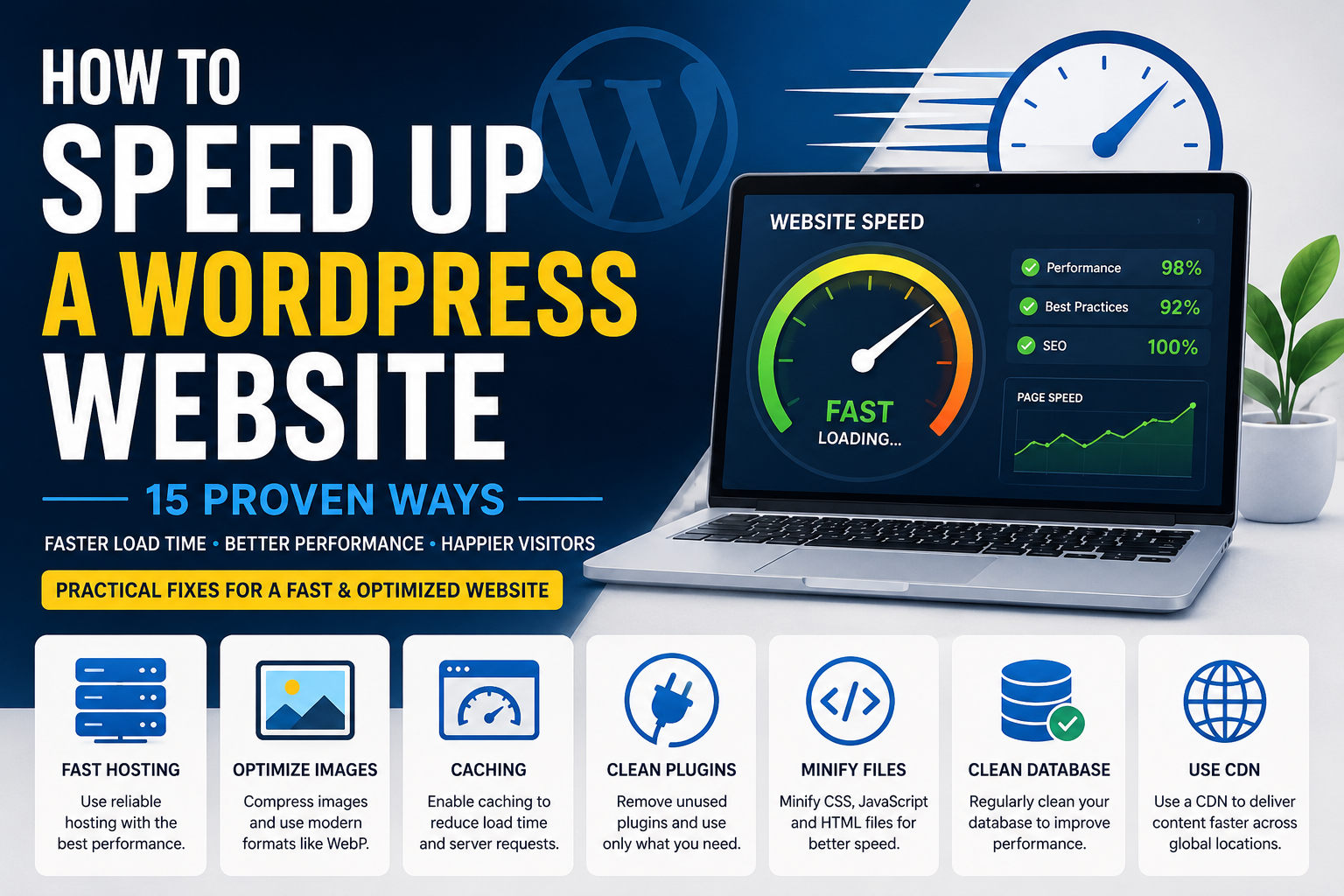
Learning how to speed up a WordPress website is important when pages take too long to appear or visitors leave before the website finishes loading. If your WordPress website is slow to load, the problem is often caused by hosting, large images, unnecessary plugins, heavy scripts, or poor caching.
Many website owners ask, “Why is my WordPress site so slow?” WordPress itself is not usually the main problem. A slow WordPress website can have one or several performance issues working together.
Before making random changes, identify what may be causing the WordPress slow loading problem. Then use the following 15 proven methods to improve your website speed safely.
Why Is My WordPress Site So Slow?
If your WordPress site is loading very slowly, there may not be one single cause. Slow server response, large images, heavy plugins, page builders, database queries, external scripts, and missing caching can all increase loading time.
Sometimes a website is fast on desktop but slow on mobile because mobile devices and connections handle heavy pages differently. If this happens on your website, read my guide on why your WordPress website is slow on mobile and learn how to improve mobile performance. Start by testing the affected pages instead of assuming that WordPress itself is slow.
Finding the main cause first makes it much easier to choose the right optimization method.
1. Test Your WordPress Website Speed
Start by testing your homepage, service pages, landing pages, and blog posts separately. One page may perform well while another contains large images or heavy scripts.
Use Google PageSpeed Insights to review mobile and desktop performance, Core Web Vitals, image issues, and files that delay visible content. Save the results so you can compare them after making improvements.
2. Choose Faster WordPress Hosting
Your hosting server processes website requests before the page reaches the visitor. Weak shared hosting can create slow response times, especially when several websites are using the same resources.
Choose hosting that provides current PHP support, SSD or NVMe storage, sufficient memory, server-level caching, backups, and reliable uptime. You can also review the official WordPress hosting requirements before selecting a server.
3. Optimize Images Before Uploading
Large images are one of the most common reasons a WordPress website loads slowly. Uploading a 4 MB image for a space that only displays it at 800 pixels wastes bandwidth.
Resize images before uploading, compress them, and use WebP where possible. Avoid using unnecessarily large dimensions for thumbnails, service cards, and blog images.
4. Enable Lazy Loading
Lazy loading prevents images and videos further down the page from loading immediately. They only load when the visitor moves closer to them.
This reduces the initial page size and helps important content appear faster, especially on image-heavy portfolio and e-commerce websites.
5. Configure WordPress Caching
Without caching, WordPress may process PHP and database queries every time someone visits a page.
Page caching creates a ready-to-display version of your content. Browser caching allows repeat visitors to reuse stored files. Object caching can also improve database-heavy websites.
Use one suitable caching solution instead of activating several plugins that perform the same task.
You can also review the official WordPress performance optimization guide for more information about caching and server performance.
6. Remove Unnecessary Plugins
A large plugin count does not always make a website slow, but poorly coded or overlapping plugins can create performance problems.
Delete inactive plugins and remove tools that are no longer needed. Check whether multiple plugins are providing security, optimization, analytics, or form features that could be handled by one reliable solution.
7. Use a Lightweight WordPress Theme
Some themes include sliders, animations, icon libraries, demo features, and scripts that load even when they are not being used.
Choose a lightweight, regularly updated theme. Disable unused theme features and avoid adding visual effects that do not improve the visitor’s experience.
8. Simplify Elementor and Page-Builder Layouts
Page builders such as Elementor make website design easier, but complex layouts can add extra HTML, CSS, JavaScript, animations, and other resources.
Avoid unnecessary nested containers, large sliders, background videos, excessive animations, and widgets you do not need. Keep mobile layouts simple and remove elements that add little value to visitors.
If your WordPress website is slow to load, simplifying heavy page-builder sections can reduce page size and improve loading performance on both mobile and desktop.
9. Minify CSS and JavaScript
CSS controls design, while JavaScript powers interactive features. Large or unnecessary files can delay page rendering.
Minification removes extra spaces and comments from these files. You can also delay non-essential JavaScript and remove unused CSS. Test menus, forms, sliders, and checkout pages after making these changes.
10. Reduce Third-Party Scripts
Live chat, analytics, advertising pixels, social feeds, maps, videos, and external fonts can slow a page because they depend on other servers.
Keep only the tools your business genuinely uses. Replace embedded videos with preview images and delay non-essential tracking scripts where appropriate.
11. Clean the WordPress Database
Over time, WordPress stores revisions, expired transients, spam comments, plugin settings, and temporary data.
Create a complete backup before cleaning the database. Remove unnecessary revisions and expired entries carefully. Do not delete database tables unless you understand which plugin created them.
12. Use a Content Delivery Network
A Content Delivery Network, or CDN, stores copies of static website files in different locations. Visitors receive those files from a server closer to them.
A CDN can improve loading times for websites that receive visitors from multiple countries. It can also reduce pressure on the main hosting server.
13. Optimize Fonts and Icons
Loading several font families and weights adds extra requests to every page.
Use one or two font families and only the weights required by your design. Avoid loading a complete icon library when the website only uses a few icons.
14. Keep WordPress Software Updated
Outdated WordPress versions, themes, and plugins may contain inefficient code, compatibility problems, or security weaknesses.
Create a backup, install updates, and then test important functions. For an active business or WooCommerce website, updates should ideally be tested on a staging website first.
15. Retest After Every Major Change
Do not make ten performance changes at once. You will not know which one improved the website or caused a new problem.
Test after updating hosting, caching, plugins, images, scripts, or the theme. Compare the results with your original report and check the website manually on mobile and desktop.
If your website performs well on desktop but struggles on smartphones, read my guide on why your WordPress website is slow on mobile for mobile-specific optimization tips.
How Long Does WordPress Speed Optimization Take?
Basic improvements such as image compression, caching, and plugin cleanup may produce results quickly. Hosting problems, database issues, custom code, and complex WooCommerce websites can require more investigation.
The goal should not be to chase a perfect score. Focus on real loading speed, usability, stable functionality, and a smooth experience for visitors.
Need professional help? Explore my website speed optimization services, review my custom WordPress development services, or request a website performance assessment.
Final Thoughts
The best way to improve WordPress website speed is to fix the largest problem first. Start with hosting, images, caching, and plugins before making advanced code changes.
A fast WordPress website is easier to use, more professional, and more likely to keep visitors engaged. Regular testing and maintenance will also prevent the website from becoming slow again as new pages, plugins, and content are added.