
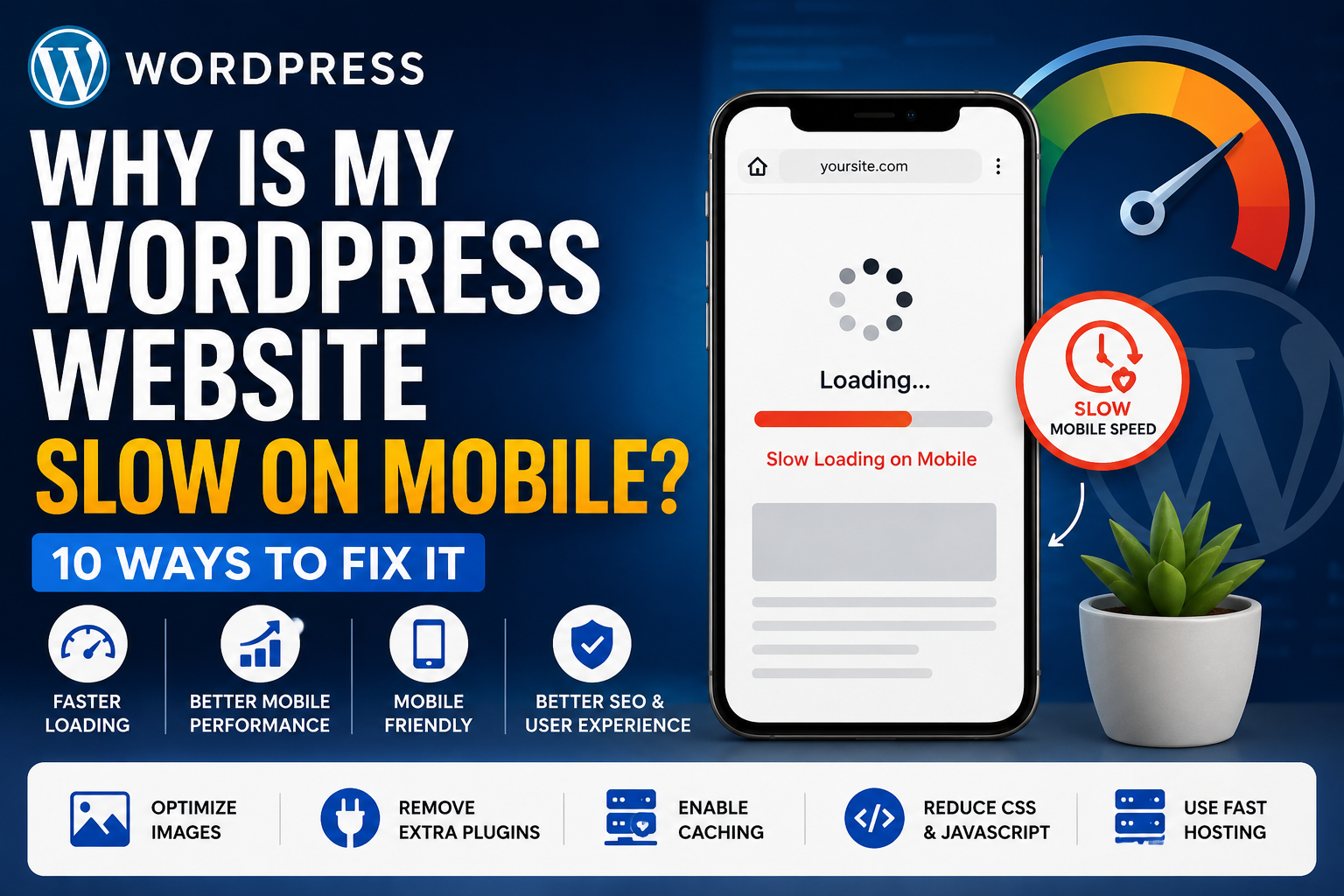
Is your WordPress website slow on mobile but working fine on desktop? This is a common problem for WordPress website owners. Large images, heavy plugins, slow hosting, unnecessary JavaScript, and poor mobile design can all increase loading time.
A slow mobile website can frustrate visitors and may also affect your search performance and conversions.
The good news is that you can improve WordPress mobile speed without rebuilding your entire website. Here are 10 practical ways to make your WordPress website faster on phones and tablets.
Why Is My WordPress Website Slow on Mobile?
Mobile devices may have slower internet connections and less processing power than desktop computers. A page that feels fast on a laptop can therefore take longer to load on a phone.
Common reasons include large images, too many plugins, heavy themes, external scripts, animations, and poor caching.
Before making changes, test your website using Google PageSpeed Insights. It can help you identify performance problems on both mobile and desktop.
1. Optimize Images for Mobile
Large images are one of the most common reasons a WordPress site is slow on mobile.
Resize images before uploading them and use modern formats such as WebP where possible. You should also compress images without making them look poor.
Avoid uploading a 4000-pixel image when the website only displays it at 800 pixels.
Smaller images require less data and can load faster on mobile connections.
2. Enable Lazy Loading
Lazy loading prevents images and videos further down the page from loading immediately.
Instead, they load when the visitor moves closer to them.
This reduces the amount of content that needs to load when someone first opens your page and can help improve WordPress mobile speed.
3. Use a Lightweight WordPress Theme
A theme can look professional but still contain unnecessary CSS, JavaScript, animations, and other features.
Choose a lightweight and well-coded theme. If you use a custom theme, remove scripts and features that your website does not need.
Your design should look good without making visitors wait for unnecessary effects.
4. Remove Unnecessary Plugins
Too many plugins can create additional database requests, CSS files, JavaScript, and background processes.
Review your installed plugins and remove anything you no longer use.
Do not focus only on the number of plugins. One poorly coded plugin can sometimes cause more performance problems than several optimized plugins.
5. Configure WordPress Caching
Caching can reduce the amount of work WordPress needs to do each time someone opens a page.
A properly configured caching solution can save ready-to-load versions of pages and reduce repeated server processing.
Caching is an important part of WordPress mobile speed optimization, especially for websites receiving regular traffic.
6. Reduce Unnecessary JavaScript and CSS
Large JavaScript and CSS files can delay page loading.
Remove unused code where possible and minify files carefully. You should also avoid loading scripts on every page when they are only needed on one section of the website.
Be careful when combining or delaying files because incorrect settings can break layouts or website functionality.
7. Improve Your Mobile Design
Sometimes the problem is not only server speed. The mobile page itself may be too heavy.
Large sliders, background videos, complex animations, popups, and oversized sections can create a poor mobile experience.
Use responsive layouts and keep important content easy to access.
A simple mobile layout often feels faster and is easier to use.
8. Use Faster WordPress Hosting
Your hosting server plays an important role in website performance.
If the server responds slowly, image optimization and caching cannot solve every problem.
Choose hosting that provides enough resources for your website and uses a suitable PHP version, server-level caching, and modern infrastructure.
For international visitors, a CDN can also help deliver static files from locations closer to users.
9. Improve WordPress Core Web Vitals
Core Web Vitals measure important parts of the user experience.
For example, Largest Contentful Paint (LCP) looks at how quickly the main visible content loads.
Large hero images, slow servers, render-blocking resources, and heavy fonts can hurt performance.
Improving these areas can help create a faster and smoother mobile experience.
10. Test Your Mobile Speed Regularly
Do not optimize your website once and forget about it.
New plugins, images, tracking scripts, design changes, and updates can make a website slower over time.
Test important pages regularly using performance tools and compare mobile results after major website changes.
Focus on real problems instead of trying to reach a perfect score at the cost of website functionality.
How to Speed Up a WordPress Mobile Site
If you want to speed up your WordPress mobile site, start with the biggest problems first.
Optimize large images, remove unnecessary plugins, configure caching, check your hosting, and reduce heavy scripts.
You can also read my complete guide on how to speed up a WordPress website for more WordPress performance optimization tips.
Final Thoughts
If your WordPress website is slow on mobile, you do not always need a complete redesign.
Start by testing the website and finding what is actually slowing it down. Image optimization, caching, better hosting, clean code, fewer unnecessary plugins, and a responsive design can make a major difference.
Good WordPress mobile performance helps visitors browse your website more easily and creates a better overall user experience.
Need Help With WordPress Speed Optimization?
Still struggling with a slow WordPress website?
I provide WordPress speed optimization, performance troubleshooting, Core Web Vitals improvements, plugin and theme optimization, and custom WordPress development.
Get in touch if you need professional help improving your WordPress website speed on mobile and desktop.