
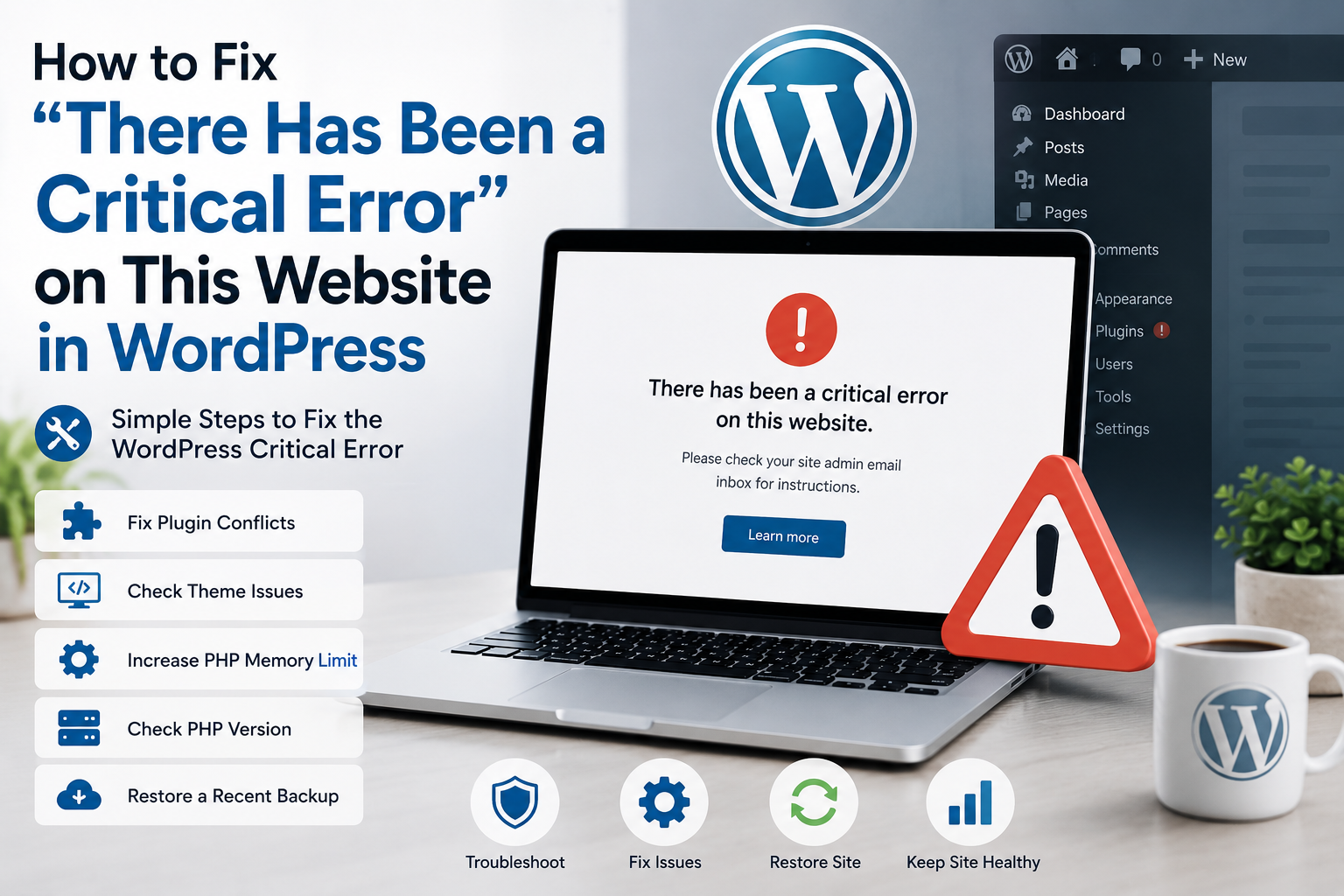
Seeing the message “There has been a critical error on this website” can be stressful, especially when your website suddenly stops working. This is a common WordPress critical error, and in most cases, it can be fixed without rebuilding your website.
The error usually happens because WordPress cannot complete an important process. A plugin, theme, PHP issue, or lack of server memory may be causing the problem.
In this guide, you will learn how to fix WordPress critical error problems using simple troubleshooting steps.
What Does the WordPress Critical Error Mean?
A WordPress critical error means something has stopped WordPress from working correctly. Instead of loading your website normally, WordPress displays a critical error message.
You may see:
“There has been a critical error on this website. Please check your site admin email inbox for instructions.”
Sometimes the website may stop working completely, while in other cases you may only lose access to certain pages or the WordPress dashboard.
The good news is that this message does not always mean your website data is lost.
What Causes a Critical Error in WordPress?
Several problems can cause a critical error on a WordPress website. Common causes include:
- A broken or incompatible plugin
- A theme conflict
- A recent WordPress update
- An outdated PHP version
- PHP memory limit problems
- Incorrect custom code
- Corrupted WordPress files
If the error started after installing or updating something, that plugin or theme should be one of the first things you check.
How to Fix WordPress Critical Error
Before making major changes, create a backup if you still have access to your hosting account or website files.
Then try the following solutions.
1. Check Your WordPress Admin Email
WordPress may send an email to the website administrator when a serious error occurs.
The email can include information about the plugin, theme, or file causing the problem. It may also provide a link to WordPress Recovery Mode.
Check your inbox and spam folder before changing anything.
2. Disable Your WordPress Plugins
A plugin conflict is a common cause of a WordPress plugin critical error.
If you can access wp-admin, go to:
Plugins → Installed Plugins
Deactivate your plugins and check whether the website starts working.
If you cannot access WordPress admin, use your hosting File Manager or FTP. Open:
wp-content → plugins
Rename the plugins folder temporarily. This will disable the plugins.
If your website starts working again, a plugin is likely causing the error. Enable the plugins one at a time to find the problem.
3. Check Your WordPress Theme
Your active theme can also cause a WordPress website critical error, especially after a theme update or custom code change.
If possible, temporarily switch to a default WordPress theme.
If you cannot access the dashboard, you may need to use File Manager or FTP to troubleshoot the active theme.
If the website works with another theme, check your original theme for outdated files, custom PHP code, or compatibility problems.
4. Enable WordPress Debug Mode
WordPress debugging can provide more information about the error.
Open your wp-config.php file and find:
define( 'WP_DEBUG', false );
Change it to:
define( 'WP_DEBUG', true );
The error information can help identify the plugin, theme, or PHP file causing the problem.
Do not leave debug messages visible on a live website after troubleshooting.
5. Increase the PHP Memory Limit
WordPress needs enough server memory to run themes and plugins.
If your website reaches its PHP memory limit, it may cause a WordPress fatal error or critical error.
You can check your hosting settings or contact your hosting provider to increase the available PHP memory.
However, increasing memory is not always the final solution. If one plugin is using too many resources, that plugin should also be investigated.
6. Check Your PHP Version
An old or unsupported PHP version can create compatibility problems with newer WordPress themes and plugins.
You can also check the official WordPress PHP requirements before changing your server configuration.
Check your PHP version through your hosting control panel.
Before changing PHP versions, make sure your WordPress core, theme, and important plugins are compatible. It is also a good idea to create a backup first.
7. Restore a Recent Backup
If the WordPress critical error appeared after a major update or code change and you cannot find the cause, restoring a recent working backup may be the fastest solution.
Only restore a backup you trust and remember that changes made after that backup may be lost.
How to Prevent WordPress Critical Errors
Regular WordPress website maintenance can reduce the chance of future errors.
Keep WordPress, themes, and plugins updated, but always create a backup before important updates. Remove plugins you no longer use and avoid installing plugins from unknown sources.
You should also use reliable hosting and test major changes before applying them to a live website.
Good WordPress troubleshooting starts with regular backups and careful updates.
Final Thoughts
The message “There has been a critical error on this website” looks serious, but it can often be fixed by finding the plugin, theme, PHP, memory, or code problem causing it.
Start with simple steps such as checking your admin email and disabling plugins. Then move to theme, debugging, PHP, and backup checks if necessary.
Need Help Fixing Your WordPress Website?
Still seeing a WordPress critical error or your WordPress website is not working correctly?
I provide WordPress troubleshooting, custom development, plugin and theme fixes, performance optimization, and website maintenance services.
Get in touch if you need professional help finding and fixing the problem.