
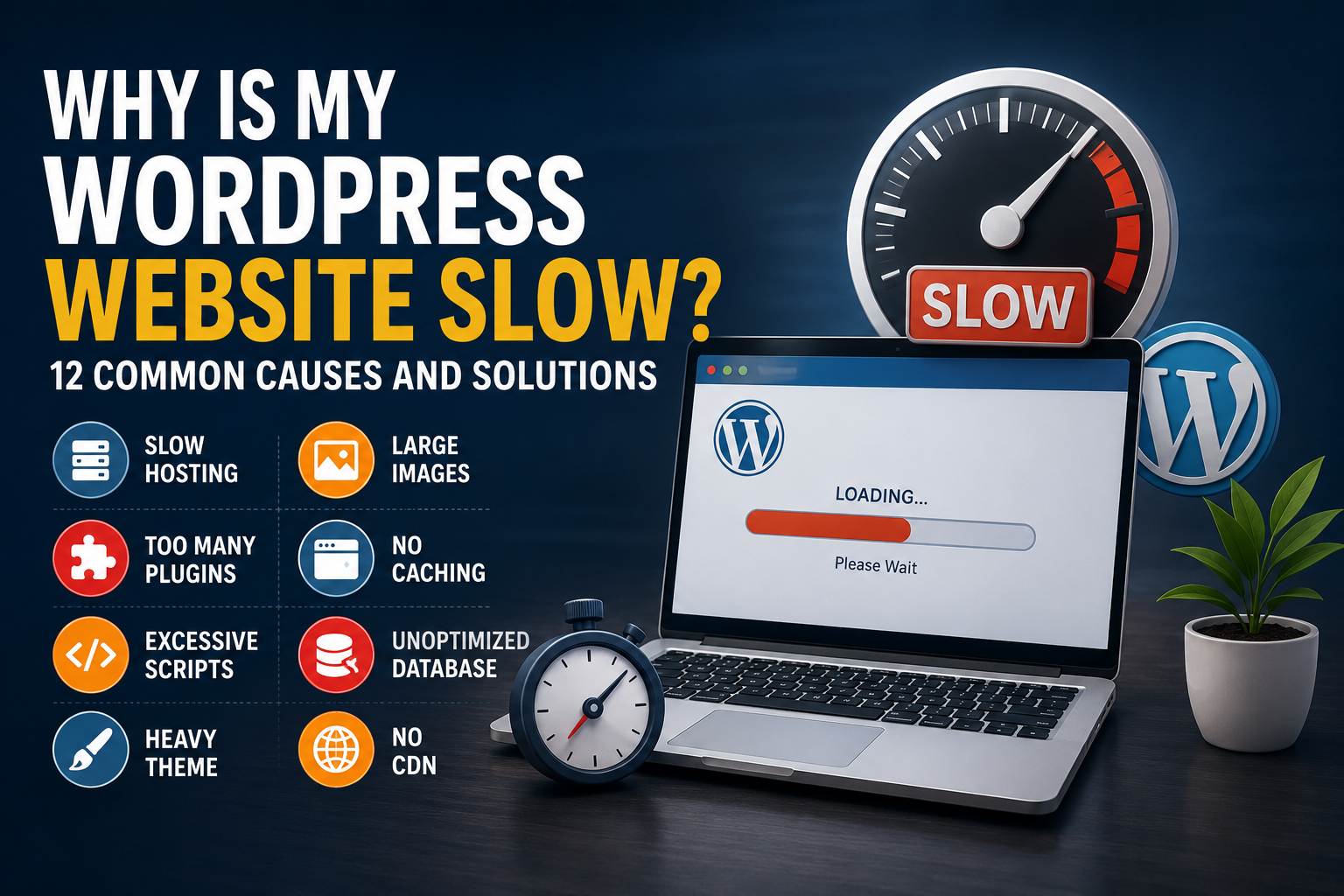
Why is my WordPress website slow? This is one of the most common questions website owners ask after noticing that pages take too long to load, the WordPress dashboard feels unresponsive, or visitors leave before the content appears.
A slow website is rarely caused by one issue. In most cases, several small problems work together, such as oversized images, weak hosting, unnecessary plugins, poor caching, or heavy page-builder layouts. The good news is that most WordPress performance problems can be fixed once the actual cause is identified.
Below are 12 common reasons your WordPress website may be slow and what you can do about each one.
1. Your Website Hosting Is Too Slow
Hosting has a major effect on website performance. Cheap shared hosting often places many websites on the same server, which means they compete for processing power, memory, and bandwidth.
Your website may work normally during quiet hours but slow down when server usage increases.
Solution: Choose a reliable hosting provider that offers SSD or NVMe storage, updated PHP versions, server-level caching, sufficient memory, and support for WordPress. Larger or high-traffic websites may perform better on managed WordPress, cloud, or VPS hosting.
2. Images Are Too Large
Large images are one of the most common causes of slow WordPress pages. Uploading a 4 MB image when the displayed size only requires a few hundred kilobytes forces visitors to download unnecessary data.
Solution: Resize images before uploading them and use modern formats such as WebP. Compress images without making them visibly blurry and enable lazy loading so images further down the page load only when visitors scroll toward them.
3. Too Many WordPress Plugins Are Installed
The number of plugins is not always the problem. The quality and purpose of those plugins matter more.
One poorly developed plugin can slow down a website more than ten lightweight plugins. Plugins may load scripts, stylesheets, database queries, or external requests on every page, even when their features are not being used.
Solution: Remove inactive and unnecessary plugins. Replace overlapping plugins with one reliable solution and test website speed before and after disabling suspected plugins.
4. Your Website Is Not Using Caching
Without caching, WordPress may rebuild a page every time someone visits it. This involves processing PHP files and retrieving information from the database.
Solution: Use page caching, browser caching, and object caching where appropriate. Many hosting companies provide built-in caching, while caching plugins can help when server-level options are unavailable. Avoid activating multiple caching systems without checking compatibility.
5. Your WordPress Theme Is Too Heavy
Some themes include sliders, animations, icon libraries, demo templates, shortcodes, and features that your website may never use. These extra files can increase loading time.
Solution: Use a lightweight, well-maintained theme and disable features you do not need. When choosing a theme, do not judge it only by appearance. Check its performance, code quality, update history, and compatibility with your plugins.
6. Page-Builder Layouts Are Overloaded
Elementor, WPBakery, Divi, and other page builders make website creation easier, but heavily nested sections can create unnecessary HTML and CSS.
A page with too many containers, animations, background videos, carousels, and decorative effects may look attractive but perform poorly.
Solution: Simplify the layout, reduce nested containers, limit animations, and remove widgets that do not improve the user experience. Use reusable global styles instead of adding separate styling to every element.
7. CSS and JavaScript Files Are Blocking the Page
Browsers often need to download and process CSS and JavaScript before showing the page. Too many files can delay visible content.
Solution: Minify CSS and JavaScript, remove unused code, delay non-essential scripts, and load JavaScript files appropriately. Test changes carefully because aggressive optimization can break menus, sliders, forms, or checkout functionality.
8. The WordPress Database Needs Cleaning
WordPress stores revisions, drafts, comments, plugin settings, WooCommerce sessions, and temporary data in its database. Over time, unused information can build up.
Solution: Clean expired transients, spam comments, unnecessary revisions, and abandoned plugin tables. Always create a complete backup before making database changes.
9. External Scripts Are Taking Too Long
Analytics tools, live chat systems, advertising scripts, social feeds, map embeds, tracking pixels, and third-party fonts can slow down a page because they depend on external servers.
Solution: Keep only the tools that provide real value. Delay non-essential scripts, load videos through lightweight preview images, and avoid adding several tracking or chat tools that perform the same job.
10. Fonts and Icons Are Not Optimized
Loading multiple font families, weights, icon sets, and styles can add several requests to every page.
Solution: Use one or two font families and only the weights you actually need. Host fonts locally when appropriate, preload important font files, and avoid loading an entire icon library for a few icons.
11. WordPress, Themes, or Plugins Are Outdated
Old software may contain inefficient code, compatibility problems, or security vulnerabilities. However, updating everything without preparation can also create conflicts.
Solution: Back up the website before updates. Update WordPress core, themes, and plugins regularly, then test important functions such as forms, menus, login areas, and checkout pages.
12. Your Website Is Not Using a CDN
Visitors located far from your hosting server may experience slower loading because files must travel a longer distance.
A Content Delivery Network stores copies of static files across different locations and delivers them from a server closer to the visitor.
Solution: Configure a reputable CDN for images, CSS, JavaScript, and other static content. A CDN is especially useful for websites receiving visitors from different countries.
Why Is My WordPress Website Taking Too Long to Load?
A WordPress website usually takes too long to load when the server response is slow or the page contains large files and unnecessary requests. Heavy images, multiple plugins, external scripts, animations, and poor caching can all delay loading. Test the website on both mobile and desktop, then fix the largest performance issue first instead of installing several optimization plugins at once.
How to Find Out Why Your WordPress Website Is Slow
Do not install several optimization plugins immediately. Start by testing the website and identifying the actual bottleneck.
Check the homepage, service pages, blog posts, and mobile version separately. A homepage may load quickly while a product, checkout, or landing page remains slow.
Review:
- Server response time
- Image sizes
- Plugin activity
- Database performance
- Third-party scripts
- Mobile loading speed
- Core Web Vitals
- Errors in the browser console
Make one change at a time and test again. This helps you understand which adjustment improved the website and which one created a new issue.
How to Find Out Why Your WordPress Website Is Slow
Do not install several optimization plugins immediately. Start by testing the website and identifying the actual bottleneck.
You can test your website using Google PageSpeed Insights to identify loading issues, review Core Web Vitals, and find opportunities to improve performance.
Final Thoughts
When asking, “Why is my WordPress website slow?”, remember that performance problems usually come from a combination of hosting, images, plugins, scripts, database activity, and design decisions.
A fast WordPress website does not need to be visually boring. It simply needs clean development, properly sized media, reliable hosting, and features that serve a genuine purpose.
Start with the largest problems first. Improving hosting, compressing images, removing unnecessary plugins, and setting up caching can often produce a noticeable difference without rebuilding the entire website.